I've recently gotten a few questions from customers about how to perform database operations using JMP. One question is whether you can use JMP to connect to databases. With JMP, yes, you can connect to an ODBC-compliant database using JMP Scripting Language or the Open database dialog interface. If you have the appropriate ODBC driver installed (and the Data Source Name or DSN has been defined), then using the File -> Database -> Open Database command will connect to the database and open the specified table within JMP. This video shows how to configure an ODBC DSN using a Microsoft Access database file.
In the example for this post, I connected to a Microsoft Access database using a machine data source name and selected the database table tblVehicle. I could also have connected to an ORACLE DBMS, MySQL database or even an SQL Server database.
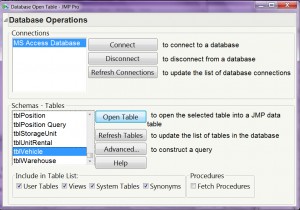
If you prefer not to use the menu option, you could also do the same using JSL. In this example script provided for demonstration purposes, I connected to the Microsoft Access database and returned all the records in the table titled "tblVehicle" (see above).
//Connect to database and select table
Open Database(
"DSN=MS Access Database;DBQ=C:\Users\stkopr\Documents\MovinOn.accdb;DriverId=25;FIL=MS Access;MaxBufferSize=2048;PageTimeout=5;UID=admin;",
"SELECT * FROM tblVehicle",
"tblVehicle"
);
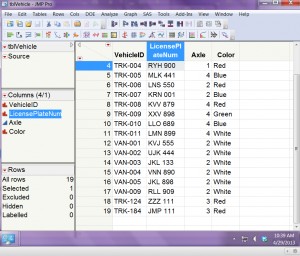
Another question is I've gotten recently from customers is whether you can use JMP to insert records into a database. Again, the answer is yes, you can. You can perform some analysis with JMP and then insert an analysis results table or even a single individual record back to the database.
The demonstration script for inserting a single record into a database table is shown below.
// Connect to database and insert new record
Open Database( "DSN=MS Access Database;DBQ=C:\Users\stkopr\Documents\MovinOn.accdb;DriverId=25;FIL=MS Access;MaxBufferSize=2048;PageTimeout=5;UID=admin;",
"INSERT INTO tblVehicle
(VehicleID , LicensePlateNum, Axle, Color)
VALUES ('TRK-199', 'JMP 429', 4, 'Blue');");
Using the same JSL submitted previously, I can display the table in JMP with the newly inserted record selected.
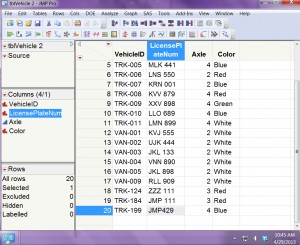
You could also order the records, subset the data with a where clause, submit a nested subquery or delete a single record -- all from within the comfort of JMP.
Once you have completed all your database actions, remember to close the database connection. Again, this can be done using the Disconnect button from the Open Database dialog window or using JSL.
More information on using the JMP ODBC interface can be found in the Help documentation under “Import Data from a Database.”
Let me know if you have used this feature to insert a record. Or do you typically write out the entire table back to the database?

