There are many ways of generating a model such as basic linear regression, decision trees, neural nets, and generalized linear models. JMP Pro can be a great tool for data miners, those who want to get more information out of their data and build more accurate predictive models. It incorporates traditionally complicated algorithms that, in true JMP fashion, even a novice can harness to quickly build powerful models. Bootstrap forests, boosted trees and multilayered-boosted neural nets are just a sample of the powerful tools in JMP Pro. One thing that makes JMP Pro a powerful data mining tool is ability to build, tune and test your model in one step.
A while back, this blog featured a great post on the concept of training, validation and test sets to build your models. To build a model that is not only descriptive but also predictive, validating your model and subsequently testing it is essential.
The first step, as described in the blog entry, was to first split your data into three groups: training, validation and test portions. Next, you build a model based on the training portion of your data that has captured the behavior of the data (your system) and not just the noise. Once you've come up with a legitimate model, you apply that model to the validation set. If you've built a model that captures the underlying behavior, you should get similar behavior. If you do not, you have to go back and build another model; this process may go back and forth a few times. Once you get a model that gives similar behavior in the validation built with the training set, you expect the model to be repeatable so you apply the model to the test set.
JMP Pro is a huge breakthrough in simplifying the process. The first enhancement introduced is a much easier way of generating a validation column. From JMP, choose Cols -> New Column, Initialize Data -> Random -> Random Indicator. Random Indicator column will default to values 0 (Training) , 1 (Validation) and 2 (Test). You can now choose what portion of the data you want to use for each step.
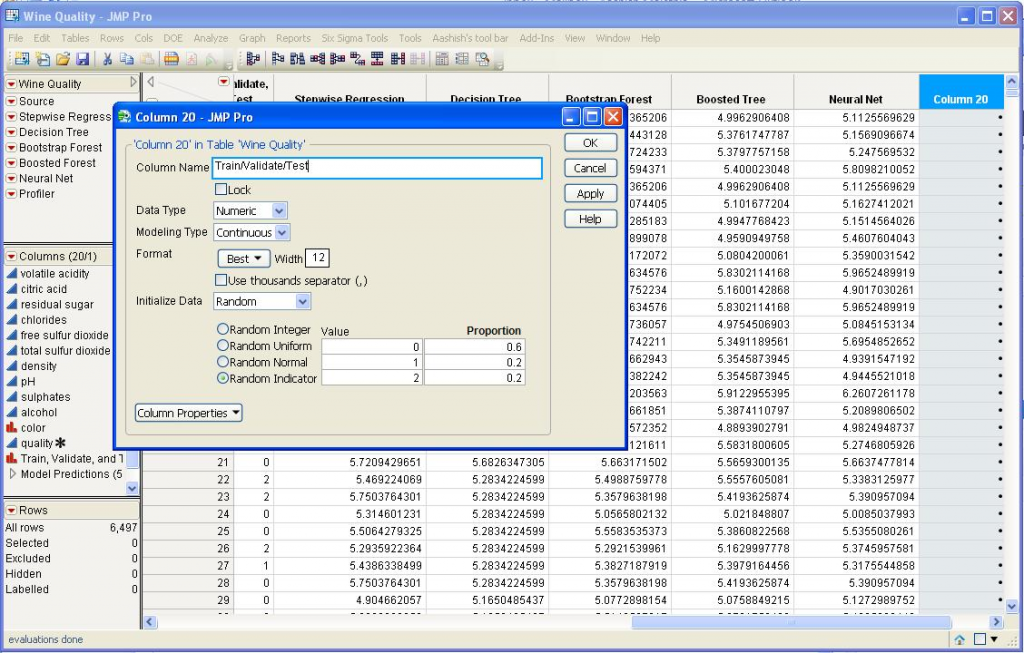
Most of the modeling platforms in JMP Pro now have a option to input a validation column. This allows you to complete the long process of building, tuning and testing your models, as I just described above, in one easy step. As you're inputting your variables, choose your newly made column as the validation option.

One fact of statistics is that not all modeling techniques work well for all data sets. Each technique has its strengths and weaknesses; each one can teach you something different about your data. One strength of JMP Pro is that it offers multiple modeling techniques under one roof. You can try each algorithm, evaluate its performance and even save the model (prediction formula) to the data table as a new column. JMP Pro Version 10 now allows you to compare your models once they've been built.
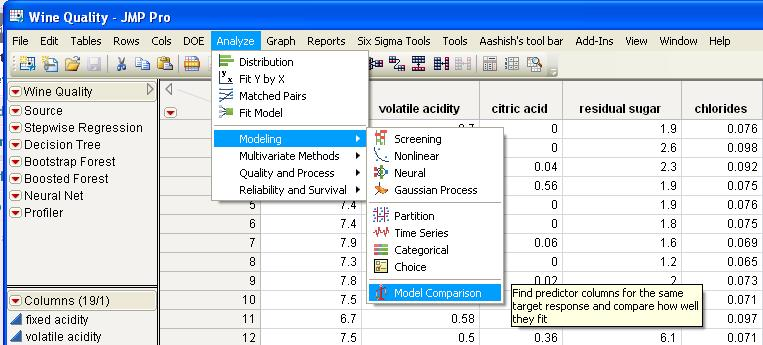
Run the Model Comparison platform and choose the models you want to compare (or let JMP choose them).
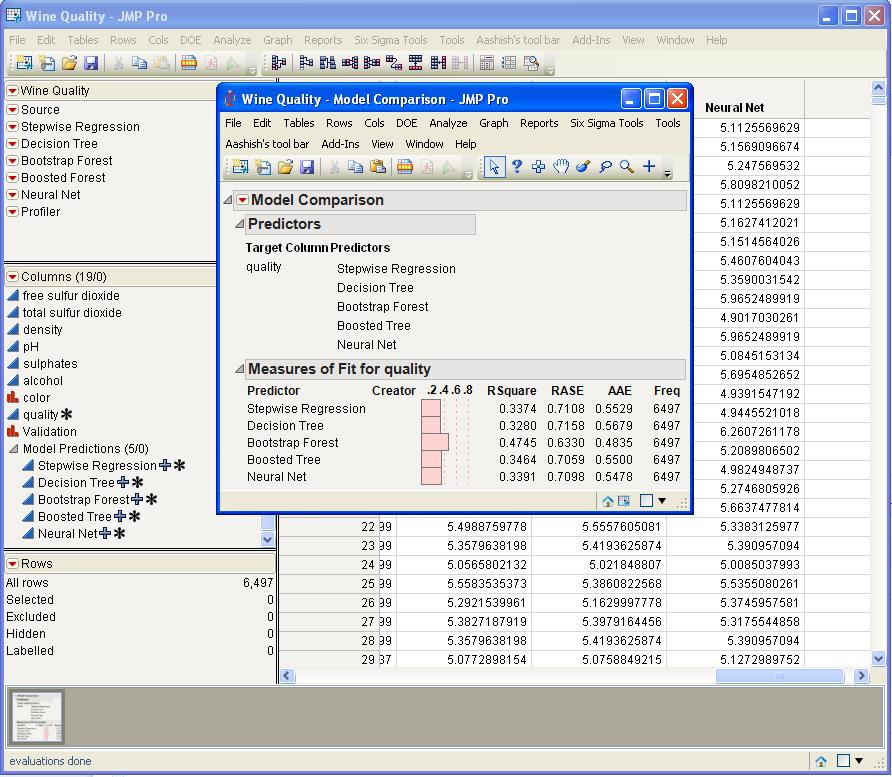
In this example, the Bootstrap Forest seems to have generated the best model. If multiple models have similar statistics, another method to view the models is to use the interactive Profiler platform. It not only allows you to develop an intuitive understanding of how the model works, but it also shows how varying multiple inputs can affect the output. You can download the data I used in this blog post from the JMP File Exchange and try it out yourself! (Note: Download requires a free SAS profile.)


